
Send Invoices and Receipts
Send Receipts to Customers in a Flash
Learn how to create and send invoices, record payments, and deliver receipts instantly or from past transactions in MX™ Merchant.
Overview
This guide explains how to create and send invoices in MX™ Merchant, including how to add customers, define billing terms, and collect payments online. It also covers how receipts are generated and sent—either immediately after a sale or later from the Payments page. Follow these steps to ensure your customers receive accurate documentation and convenient payment options every time.
Sending Invoices
Invoices allow you to bill customers, define payment terms, include products or services, and collect payments online.
Note:
The customer must have a registered email address to receive the invoice and submit payment.
Start a New Invoice
-
Go to the Invoices section from the left-hand menu.
-
Click + Add Invoice in the upper-right corner.
-
Fill in the following information (learn more about each step in the Create Invoices user guide):
- External Invoice Reference Number - Optional invoice reference number.
- Customer Information - Customer name, type, phone number and email address.
- Billing Details - Due date, PO Number and accepted payment methods.
- Items - The products and services included in the invoice. Include the name, description, quantity, price, taxes and discounts for each item.
- Additional Information - Optional attachments and memo (customer-facing notes).
-
After checking information, click Save & Send. The customer will now receive an email with a secure payment link, if online payments are enabled.
Notes:
If you don't need to send the invoice just yet, you may click Save to store the invoice as a draft.
If the invoice will be paid right away, you may click Add Payment to record a payment immediately.
Sending Receipts
Receipts in MX™ Merchant are recorded as payments. The Payments page allows you to view, search, filter, export, and inspect detailed transaction information.
You can send receipts in the two following scenarios:
Send Receipts upon Sale
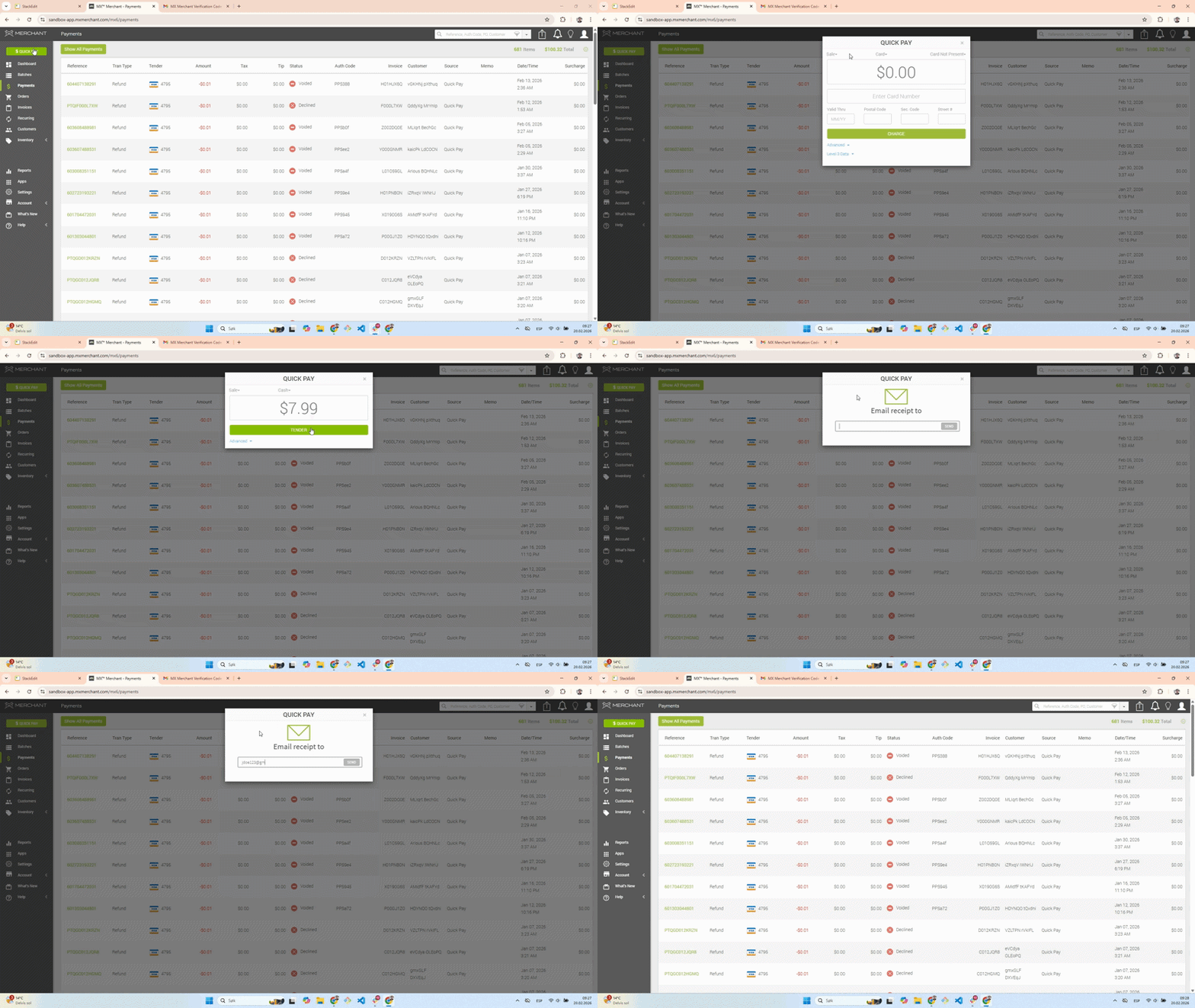
This scenario occurs when you need to send a receipt to a customer right after they have been charged.
- After compleing a payment, either through Quick Pay or an invoice, you will be shown three options for sending the receipt:
- Text
- Select one of the options above and enter the required contact information:
- For Email, enter the recipient's email address.
- For Text, enter the recipient's (mobile) phone number
- For Print, a new tab with the receipt will pop up. Click Print on the upper right-hand corner.
- Send.
Send Receipts from Previous Sale
This scenario is less common. Sometimes, customers may request a receipt long after they have made a payment.
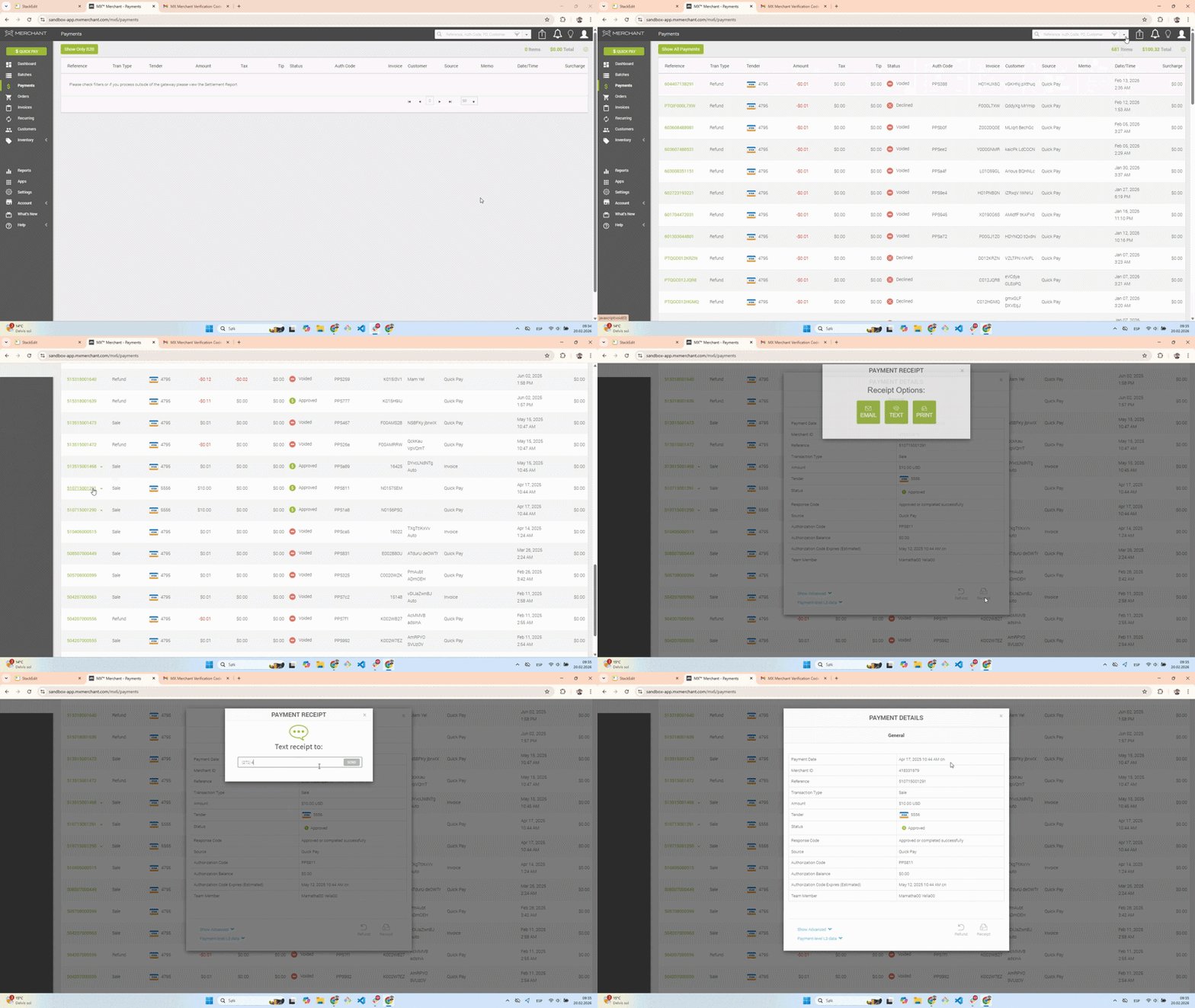
- Go to Payments on the left-hand panel.
- You will be shown a list of all payments processed, ordered chronologically from most to least recent.
- Find the payment you need using the provided search tools.
- Click the name, written in green on the leftmost column, to see the payment information.
- Click Receipt. You will be shown three options for sending the receipt:
- Text
- Select one of the options above and enter the required contact information:
- For Email, enter the recipient's email address.
- For Text, enter the recipient's (mobile) phone number
- For Print, a new tab with the receipt will pop up. Click Print on the upper right-hand corner.
- Send.
Updated 10 days ago